
Time to read:
After a default install of Windows AD (Active Directory)1 on Windows Server 2022 you may find that you’re missing all of the Microsoft Edge policies within Group Policy. In this post we are going to go over adding the latest Edge policies.
The advantage of adding in the latest Microsoft Edge policies this is greater control of Edge deployments in an enterprise environment allowing you to control user configurable settings and set security features in a way to match your company regulations.
- SECTION I – Missing Policies
- SECTION II – Installing Latest Policies
- SECTION III – Final Result
- SECTION IV – Footnotes
SECTION I – Missing Policies
When I created a GPO (Group Policy Object)2 to control some Microsoft Edge features I found that I didn’t have any of the Edge administrative template policies by default within my AD environment. Figure 1 demonstrates the missing policies and then Figure 2 demonstrates the Edge policies that will be added once the process detailed in section II is completed.
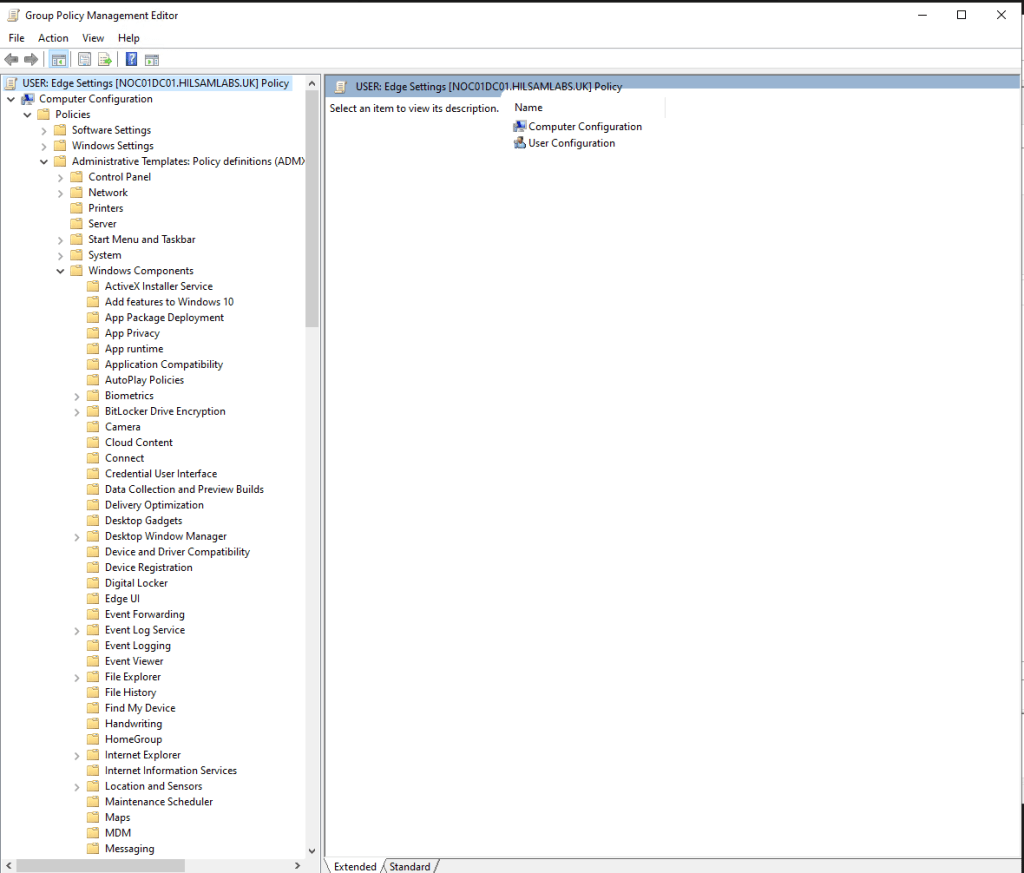
FIGURE 1 – GPO Editor No Edge Policies
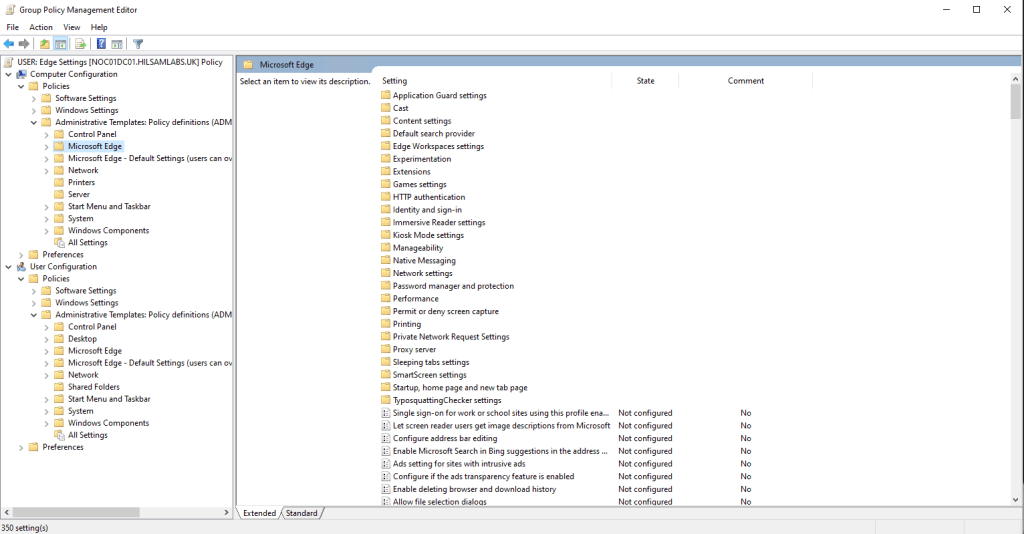
FIGURE 2 – GPO Editor With Edge Policieis
SECTION II – Installing Latest Policies
Below is the process to follow to download and install the latest Microsoft Edge administrative templates on a Windows 2022 server Active Directory environment.
SECTION II – A – Download Latest Policies
- Browse to – https://www.microsoft.com/en-us/edge/business/download?form=MA13FJ.
- Select the ‘Download Windows 64-bit Policy’.
- Move the downloaded .zip file onto your DC (Domain Controller)3.
SECTION II – B – Move Policy Files
- Establish a session onto your DC using any method.
- Open up the downloaded .zip file and navigate to the following file path inside:
- Copy the ‘msedge.admx’ file and place it locally on your DC in the following directory:
- Select the language folder that is appropriate to your environment – e.g. in my case I am using ‘en-US’.
- Copy the ‘msedge.adml’ file from inside the appropriate language folder and then place it in the following directory: NOTE: Match the language folder name you have copied the file from.
\windows\admx
C:\Windows\PolicyDefinitions
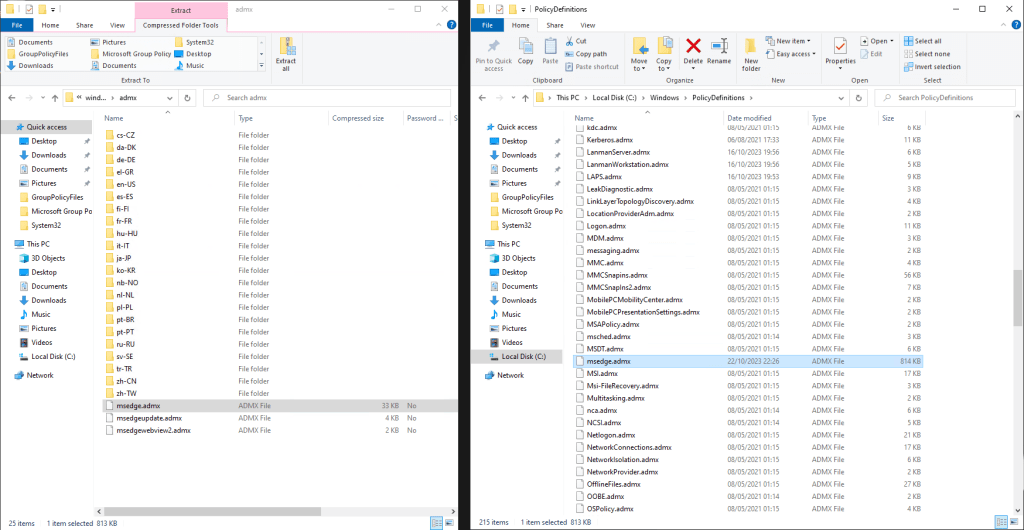
FIGURE 3 – Copy msedge.admx file
\windows\admx\en-US
C:\Windows\PolicyDefinitions\en-US
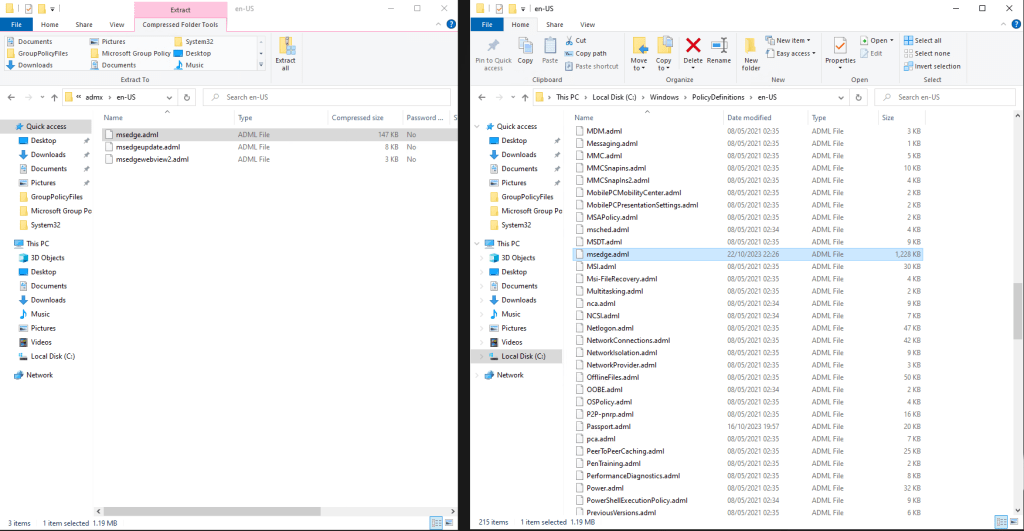
FIGURE 4 – copy msedge.adml file
SECTION III – Final Result
Now that the process has been carried out when you open up a GPO Editor you will be able to see and affect any of the listed Microsoft Edge policies.
The MS Edge polices will be under both the ‘Computer Configuration’ and the ‘User Configuration’ policies.
FIGURE 5 – GPO Editor With Edge Policieis
To sum up, we have downloaded the latest Microsoft Edge administrative template files and then placed the correct files for your language version into the correct directories on your domain controller. Now when you go to edit your group policies you can affect any of the listed MS Edge policies. The advantage of this is greater control of Edge deployments in an enterprise environment that allows you to set user preferences and security features.
SECTION IV – Footnotes
- Active Directory is a directory service developed by Microsoft for Windows domain networks. AD has become an umbrella title for various directory-based identity-related services. ↩︎
- GPO is a collection of Group Policy settings that defines what a system will look like and how it will behave for a defined group of users and or computers. ↩︎
- A domain controller is a server running the Active Directory Domain Service role. ↩︎
 Knowledge Addict
Leave a comment