
Time to read:
In this post we are going to cover how to configure Proxmox to port mirror network traffic that can then be recieved by a network analysis tools.
This took some digging through the internet for me to find a configuration that fit my requirements as best as possible, utilising different techniques I had seen online. The goal for this post is to share my configuration for getting all of my virutalised network traffic within my Promxox server into any network analysis tool. I’m sure that my exact setup will only be applicable to few but, hopefully bits of this configuration can help you solve any Proxmox virutalised port mirroring configurations you need to do.
Full credit for the commands and how to set up an OpenVSwitch port mirror go to this post – Port mirroring with Linux bridges « \1 (backreference.org)
- SECTION I – My Setup/Aim
- SECTION II – pfSense Configuration
- SECTION III – OpenVSwitch Configuration
- SECTION IV – Footnotes
SECTION I – My Setup/Aim
Lets start off by talking you through my aim for this configuration and what I wanted to achive.
Within my Proxmox environment I have a pfSense firewall that seperates my different networks. Each network has its own use for certain tools within Proxmox. For example, there is a ‘Jump’ network that has my Remote Desktop Services (RDS) server that allows me to access all of the devices within my Proxmox networks remotely. I have a ‘Blue’ network that hosts all of my domain and blue cyber security tools such as Active Directory (AD), Arkime, and Zeek.

FIGURE 1 – pfSense Firewall Diagram
I want a way for all of the traffic traversing the virutal switches to be copied to a network analysis tool such as Arkime for packet capturing or an Intrusion Detection System (IDS) such as Zeek.
Normally, if you want to mirror all of the traffic on a switch you would you something like Switched Port Analyser (SPAN) in order to mirror the traffic to a port that has the network analysis tool connected.
If the setup were virutalised within VMware ESXi then you would be able to configure the portgroup security settings to Promiscious mode so that the port group acts like a hub and traffic is forwarded to all connected devices.
However, in Proxmox the default virtual switches are Linux bridges which have no native port mirroring support.
THE SOLUTION – I am using the pfSense firewall to create a SPAN port that will spit out all of the traffic flowing between the firewall interfaces. Then I have a OpenVSwitch (OVS) bridge configured to mirror all traffic coming from the pfSense SPAN port to any connected network analysis tool.

FIGURE 2 – OVS Port Mirror Bridge Diagram
SECTION II – pfSense Configuration
Lets first go through the configuration we need to apply to the pfSense firewall.
Add a new interface to the virtual pfSense firewall that we are going to later connect to the port mirror vswitch. Navigate to the Virtual Machine (VM) in the Proxmox web Graphical User Interface (GUI)1:
- Select ‘Hardware’.
- Click the ‘Add’ button.
- Selec the ‘Network Device’ button.
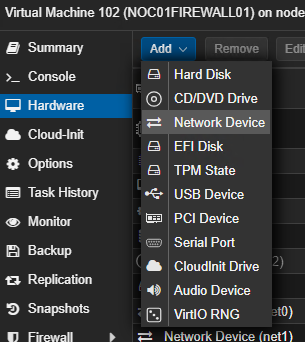
FIGURE 3 – Proxmox Add Network Device to VM
From the pfSense web GUI select Interface > Assginments. Then select the new interface in the dropdown and click the ‘add’ button. Now if navigiate to Interface > (your new interface) then you can tick the box to make sure it is enabled and give it an appropriate name. In my case I called it ‘SPAN’.
Now navigate to Interface > Assignments then select the ‘Bridges’ tab. Click the ‘add’ button to create a new bridge. Select the member interface you want to SPAN from and then under the advanced options select your new SPAN port as the destination for the SPAN. NOTE: if you want to SPAN mulitple interfaces make sure you create in individual bridge for each interface, so in my example I have a bridge per interface all destined to the same SPAN port.

FIGURE 4 – pfSense Bridge SPAN
You can confirm the SPAN port is working by navigating to Diagnostics > Packet Capture. Then set the SPAN interface as the capture interface and you should see all the traffic being passed to the SPAN interface.
SECTION III – OpenVSwitch Configuration
Now lets go through all of the steps that we need to do in order to get the SPAN traffic from the pfSense SPAN interface out into the network analyser tool.
SECTION III – A – Install OpenVSwitch
Firstly we need to install OpenVSwitch on our Proxmox server.
Establish an Secure Shell (SSH) session to the Proxmox server and login using the root credentials. Enter the following command:
apt install openvswitch-switch
SECTION III – B – Create OpenVSwitch Bridge
Now that we have OVS installed on the Proxmox server we can create an OVS bridge.
Navigate to your Proxmox server web GUI. Select your Proxmox node and then select ‘Network’ under the ‘System’ configuration. Click the ‘Create’ button and then select the ‘OVS Bridge’ button.
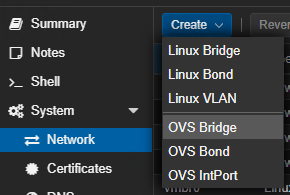
FIGURE 5 – Proxmox Create OVS Bridge
Now that your bridge is created attach both the pfSense firewall interface and the network analyser interface to the bridge.
SECTION III – C – Configure OpenVSwitch Port Mirror
OVS uses Universally Unique Identifiers (UUIDs) in order to identify everything so throughout the commands you will see me using the @ to create a variable so that I don’t have to copy down the UUID for each item in the commands.
Establish an SSH session to the Proxmox server and login using the root credentials.
Use the following command to idenfiy interface names of the devices connected to the vSwitch:
ovs-vsctl show

FIGURE 6 – Show OVS Bridge
From the output of the command above you need to identify which interface connects to which device. I did this by disconnecting one of my devices from the bridge and then using the show command. In my case the following is true:
- tap120i1 – PCAP
- tap102i6 – SPAN
Use the following command to create the mirror and then attach it to the bridge:
ovs-vsctl -- --id=@m create mirror name=(Mirror Name - in my case: SPAN) -- add bridge (bridge name - in my case: vmbr6) mirrors @m
Use the following command to select the source interface for the mirror: NOTE you can mirror traffic; inbound, outbound or both:
ovs-vsctl -- --id=@tap102i6 get port tap102i6 -- set mirror (Mirror Name - in my case: SPAN) select_src_port=@tap102i6
Use the following command to se the destination port for the mirror:
ovs-vsctl -- --id=@tap120i1 get port tap120i1 -- set mirror (Mirror Name - in my case: SPAN) output-port=@tap120i1
Now we have a port mirror set up on the OVS bridge within Proxmox so any traffic ouputed from the pfSense SPAN interface will be mirrored to the network analyser port where it can be captured.
SECTION III – D – Useful OpenVSwitch Commands
While we are here I have listed down some useful commands for OVS you may need.
View mirrors:
ovs-vsctl list mirror (Mirror Name - in my case: SPAN)
View detailed information about bridge:
ovs-vsctl list bridge (bridge name - in my case: vmbr6)
Remove specific mirror from bridge:
ovs-vsctl -- --id=@m get mirror (Mirror Name - in my case: SPAN) -- remove bridge (bridge name - in my case: vmbr6) mirrors @m
Remove all mirros from bridge:
ovs-vsctl clear bridge (bridge name - in my case: vmbr6) mirrors
SECTION IV – Footnotes
- https://<Proxmox server IP or hostname>:8006 ↩︎
 Knowledge Addict
Leave a comment