

Introduction
You have decided to store all your code within a self-hosted Git implementation. You decided to deploy Gitea as the implementation of choice. It’s going great, performance is good, you are able to store everything you want in a nice version controlled way. But then….. a little thought is festering at the back of your mind…… what if the server dies or my Gitea files corrupt?
In this post, we are going to go through a simple solution for backing up your self hosted Gitea instance that was installed using Docker.
Section I – Gitea Backup Solution
Before we get into any backing up, you need to make sure that you actually have a place to backup to, that could range from another server to an external hard drive. You just need a place that you can store any backups on that is separate from the current server.
Let’s start with the basics, if you are running your Docker server as a Virtual Machine (VM) then we can easily do a scheduled backup of the whole VM. The same goes for if you are running your Docker containers within an LinuX Containers (LXC) container. For example, in my homelab I run Promxox as the hypervisor so with a few clicks I can set up scheduled backups of all my servers.

This is a great start, at least if the server decks itself, you have some way to get the data back. However, there is more that we can do with very little effort required to get it going. A best practise I have seen a lot with regards to backups is the 3-2-1 method. The idea here is 3 copies of the data, 2 different storage types, 1 offsite location. Now this method is designed to guide backup processes for large enterprises, which unless you are running a server farm downstairs is most likely not your requirement. But, taking this method into account we have 1 copy of the data, lets get another copy.
On the Docker server Gitea is running on we are going make a backup script file. Choose a file location and name that is apprioriate to your setup. And then copy in the following script:
#!/bin/bash

  #Set up variables
  GITEA_DIR="/root/Gitea"
  BACKUP_DIR="/mnt/Gitea"
  BACKUP_FILE="$(date +%Y%m%d)_Gitea_Backup.tar.gz"
  CONFIG_FILE="./gitea/conf/app.ini"
  REPO_DIR="./git/repositories/"
  LOG_DIR="./gitea/log/"
  SQL_DIR="./mysql"

  # Stop Gitea
  cd $GITEA_DIR
  docker-compose down

  # Tar the Gitea Directory Configuration and Databse files
  tar czf $BACKUP_DIR/$BACKUP_FILE -C $GITEA_DIR .

  # Delete Oldest Backup Files if More than 7
  ls -t $BACKUP_DIR/*_Gitea_Backup.tar.gz | sed -e '1,7d' | xargs -d '\n' rm -f


  # Start Gitea
  cd $GITEA_DIR
  docker-compose up -d

  # Validate Backup
  TAR_CONTENTS=$(tar -tvf $BACKUP_DIR/$BACKUP_FILE)

  if  "$TAR_CONTENTS" == *"$CONFIG_FILE"* && "$TAR_CONTENTS" == *"$REPO_DIR"* && "$TAR_CONTENTS" == *"$LOG_DIR"* && "$TAR_CONTENTS" == *"$SQL_DIR"* ; then

          MESSAGE="Gitea config and database files backed up to $BACKUP_DIR/$BACKUP_FILE"
          STATUS="up"

  else

          MESSAGE="Gitea config and database files NOT backed up to $BACKUP_DIR/$BACKUP_FILE"
          STATUS="down"

  fi

  # Print success message
  URL="http://192.168.1.20:3001/api/push/oBk04Q8heH?"

  curl \
      --get \
      --data-urlencode "status=${STATUS}" \
      --data-urlencode "msg=${MESSAGE}" \
      --silent \
      ${URL} \
      > /dev/null
Lets go through this script:
- First, we are going to set up all the variables appropirate to your setup. The script needs to know where to look for all the Gitea files and then where to put the backup once it is done.
- Then, we need to turn the Gitea server off, this will ensure that while we are copying no other data is being written to the MySQL database which could cause problems when we come to restore.
- Then, we need to copy all of the Gitea server files into an archive file.
- Then, we can restart the Gitea server.
- The next part of the script is a way that I am validating my backups are working. It will search through the archive file for specific files and directories to make sure they are there. If they are then I can push an update to my monitoring system (UptimeKuma) so I can easily see if everything is working okay without needing to check any files myself.
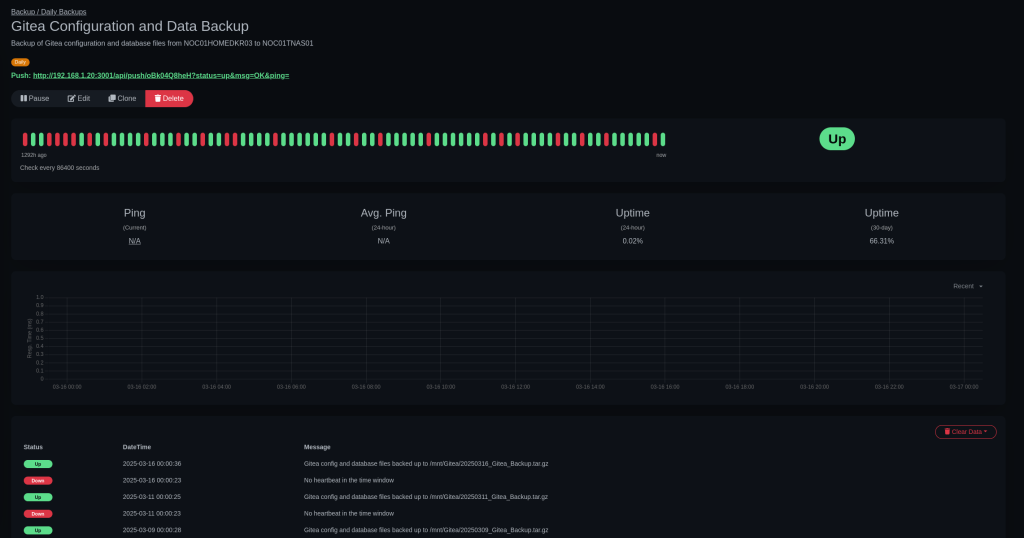
Once we have our file we need to make it executable:
chmod 700 ./backup.sh
Then we can schedule it to run using Cron jobs. This allows you to set any scheudle you desire. I have chosen to run the backups daily at 12 AM.
crontab -e
0 0 * * * /path/to/file/backup.sh
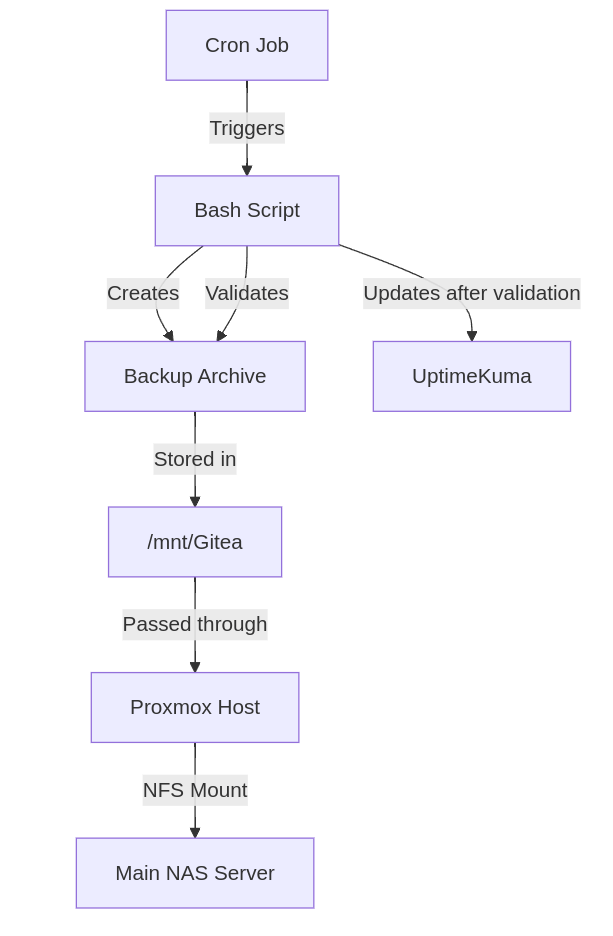
The final part of this second backup puzzle is we have a backup archive, that we know all of the important file are in, but, it’s still on the Docker server itself. Well those with a keen eye and knowledge of Linux will have noticed that the destination of the backup archive was a directory within `/mnt`. This is commonly the location that all external drives are mounted to. In my case my setup is a bit different because I run Docker within a LXC container, where my `/mnt/Gitea` directory is a pass through to my Promxox host and that same directory on the Proxmox host is a shared folder on my main NAS.
Below you can see a simple flow chart of the whole process.
 Knowledge Addict
Leave a comment