
I finally took the plunge (very log over due) and brought myself some Yubikeys to play with for personal account security.
In this post, we are going to cover how you can configure Linux to use the Yubikeys as part of user account authentication. There are a few different ways this configuration can be done, this means that you can choose the implementation that best suits your usecase:
- Required for user account login, requires both password and security token
- Optional way for user account login, can use password or security token
- Required way for sudo elevation, requires both password and security token
- Optional way for sudo elevation, can use password or security token
For example, within my own step my main desktop is set up to allow either password or security token user account login and then require both password and security token for any sudo elevation. Alternatively, my laptop is set up to require both password and security token for user account login as well as sudo elevation.
By no means do you have to use a Yubikey to do this configuration, you can use an hardware security token that uses the Fast IDentity Online 2 (FIDO2) standard for user authentication.
A final note before we begin, if you are going to require any security token for either login or sudo elevation it is strongly recommended that you have a second security token as a backup. This will provide some resilience if you loose one or one gets broken.
Section I – What is FIDO2, U2F and PAM?
Before we get to the actual configuration, it may be beneficial to have some understanding of the technologies underneath this configuration.
First, Fast IDentity Online 2 (FIDO2) is an open authentication standard that provides secure passwordless authentication leveraging public key cryptography to make it resistant to phishing, replay attacks and credential theft. The Yubikey I have is an example of a physical security token that adheres to the FIDO2 standard.
Next, Universal 2nd Factor (U2F) is an open authentication standard that requires the use of a physical security key to strengthen security surrounding authentication. This is a standard that employs the concept of Multi-Factor Authentication (MFA).
Finally, Pluggable Authentication Modules (PAM) is a flexible authentication framework implemented within Linux. This framework allows system administrators to configure how users are authenticated for various services and applications.
Section II – Pre-Requisites
Make sure that the following 2 packages are installed on your Linux system:
sudo dnf install pam-u2f pamu2fcfg
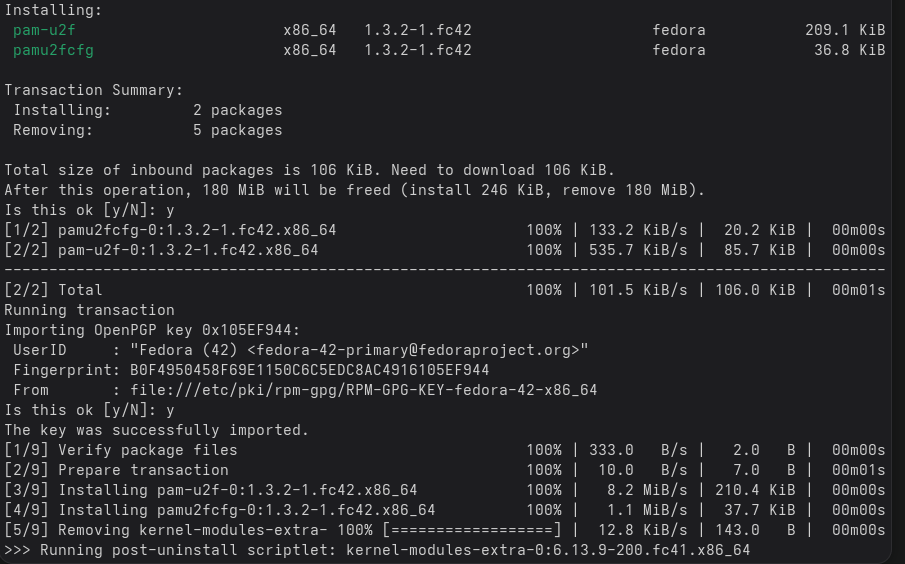
Now we need to create the directory that will store our user specific security key configurations. For my example, I will stick to the default location and create the Yubico directory as this follows the standard that the PAM U2F packages will use to look for the configuration. You can create a custom directory, you will just need to remember it and reference it later within the PAM configuration:
mkdir -p ~/.config/Yubico
Section III – Register Security Tokens
Connect your security token to the device. Then run the following command to ensure that it is seen by the Operating System (OS):
fido2-token -L

Use the following command to register the token entering the FIDO PIN for the security token when prompted and then touching the key:
pamu2fcfg > ~/.config/Yubico/u2f_keys

If you want to always be prompted for the security token PIN then use the -N flag:
pamu2fcfg -N > ~/.config/Yubico/u2f_keys
It is recommended that you configure a backup Yubikey at this point just in case the primary token stops working or is lost. To register the backup key use the following command to register the second key, repeating the same steps of entering the command, entering the FIDO PIN and then touching the key:
pamu2fcfg -n >> ~/.config/Yubico/u2f_keys
Like before if you want to always prompt for the security token PIN then use the -N flag:
pamu2fcfg -N -n >> ~/.config/Yubico/u2f_keys
Section IV – Configure PAM
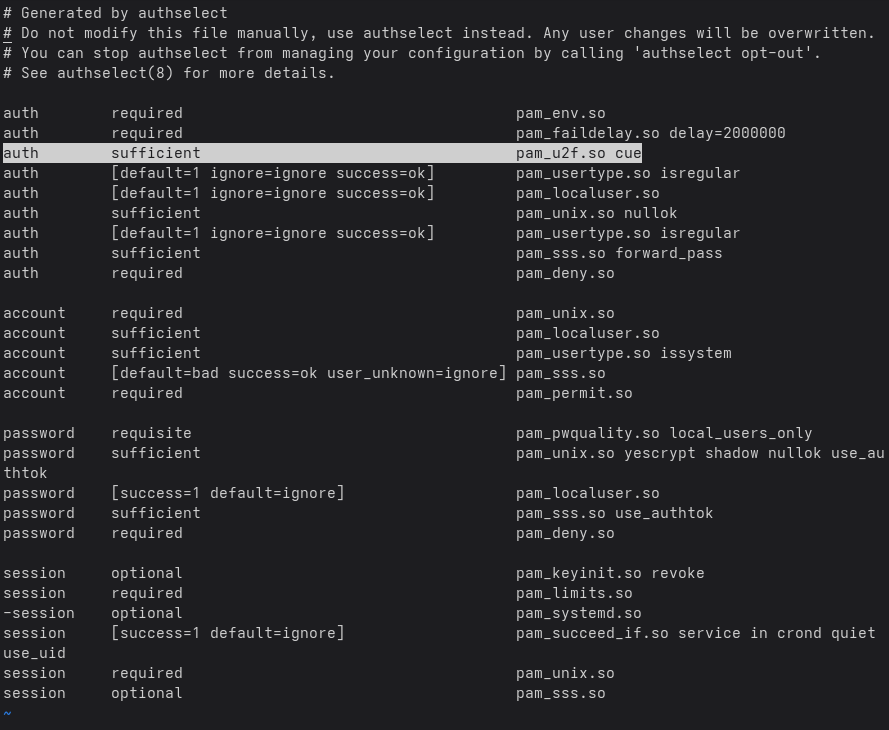
Configuring PAM Fedora uses authselect to manage PAM authentication profiles. By default authselect adds the FIDO token as sufficient, this means the token can allow login without the need for the password, and then also means if you don’t have the token the password will allow login. If you want to make this FIDO token as part of MFA then you need to set it to required so that both the token and the password are required for a successful login. My recommendation is to use sufficient first to ensure functionality and then move to required if 2FA is the goal.
Enter the following commands to enable the FIDO token as part of the PAM authentication profile:
sudo authselect select sssd with-pam-u2f
sudo authselect apply-changes
At this point I would log out or lock the user account and then log back in using both the security tokens to ensure their functionality.
If you want to make the security token required for all logins then edit the following file:
vi /etc/pam.d/system-auth
Find the pam_u2f.so line and change sufficient to required. Once you save the file this authentication configuration will immediately be in force.
NOTE – at this point if you are using a custom directory to store your security token configurations you need to reference it here using you need to add the following after pam_u2f.so cue:
authfile=/path/to/your/u2f_keys
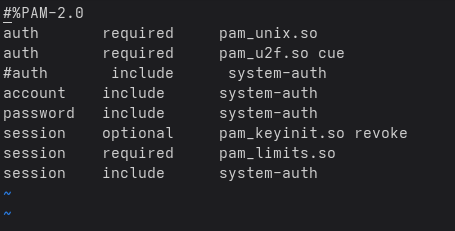
If you set the user account login to require the security token then this same behaviour will be inherited by all sudo elevations. To make sudo elevation require the security token when the user account can use either password or security token, you can edit the following file:
NOTE – before you change this file make sure you have a sudo session established just so root access is not lost due to misconfiguration.
vi /etc/pam.d/sudo
Ensure you have the following lines in the configuration:
auth required pam_u2f.so cue
auth required pam_unix.so
NOTE – the cue option means that you will see the prompt to touch the device and enter the PIN.
Then comment out the system auth line:
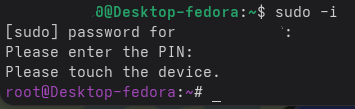
Now when you try to elevate to root using sudo you need to have the security key connected and you will be prompted for your user password as well as token PIN (if you use the -N flag earlier.)
 Knowledge Addict
Leave a comment