

In my homelab environment I have 2 main servers, a small always on server, and a big server that I don’t always keep on because it absolutely chomps through power! This big server, among other services, runs an instance of Windows Active Directory (AD) on a Domain Controller (DC). This DC acts as the authoritative name server for my homelab domain. While wanting to not require the big server to be on all the time I did want all the services that I run on my always on server to use my homelabs Domain Name System (DNS). What I needed was a way to run an always on DNS server without needing to create another heavy Windows based server as a secondary DC. For the simplest lightweight solution I have created a Linux DNS server, using the BIND9 service, that syncs from my main DC’s DNS zone. This allows it to cache DNS records for the homelab domain so DNS resolutions will work with the big server turned off.
Section I – What is DNS and a DC?
Domain Name System (DNS) is a hierarchical name resolution system that allows devices to resolve an Internet Protocol (IP) address for the associated domain name. It uses User Datagram Protocol (UDP) as its transport protocol and works in a request reply model where a device will request the IP address for a specified domain name to its DNS server and if the DNS server is the authoritative server for that domain or it has the resolution stored in its cache it will respond with the correct IP address or the server will request the address from an upstream server. The DNS messages use a 12 byte fixed header followed by a single question or answer. Another point to note on DNS is forward and reverse lookup zones. Forward DNS lookup is when you search using a DNS name to resolve the IP address. Reverse DNS lookup is when you search for an IP address to resolve the DNS name.
Lets quickly understand the role that my DC plays in this. Firstly what is a DC? A Windows Domain Controller (DC) is a central server key to the operation of a Windows domain. It allows for easy management, administration and security enforcement of all the devices joined to the domain. The key functions of a DC are authentication and authorisation, security and administrative user and device policy enforcement as well as directory services maintaining a database of users, groups and devices as objects within a domain. DC’s work in a hierarchical architecture and continuously sync between each DC through a replication process. Typically a Windows DC will be running and installation of Active Directory Domain Services (ADDS). Among the many services running on the DC you can optionally run a DNS server. This allows the DC to sit a the centre of the domain and provide name resolution for all the devices joined to the domain.
Finally, just because I have mentioned AD lets take a quick dive into it. Active Directory (AD) is a Microsoft developed directory service predominantly designed for the Windows domain. This is one of the services typically running on a Windows Domain Controller. AD acts as a central database and set of services storing information to allow the full operations of the domain between devices and users. Some key features include; authentication and authorisation, central management, hierarchical directory structure, policy application and enforcement and replication. DNS plays an essential role in the domain as this is used by devices to locate their domain controllers. Additionally, there will typically be a DNS entry configured for all devices joined to the domain. Although a DNS server function isn’t itself part of the AD implementation it is a requirement that has to be run either on a separate server that the AD server can communicate with or on the AD server itself.
Section II – Initial Linux Setup
The first step here is to configure a Linux based server that you can use as the DNS server. I am not going to go through this step, I will assume your Linux server is set up and good to go. In my base I am running a Debian based LinuX Containers (LXC) instance. It is also worth noting that you should make sure your server is up to date:
apt update
apt upgrade -y
Now we can install the services required for this DNS server. For this I will be using the BIND9 service:
apt install bind9 bind9utils bind9-doc
Section III – Windows Active Directory Configuration
Connect to your Windows DC server and open up the DNS manager application.
Under the DC name expand the Forward Lookup Zones folder and select the DNS zone you want to transfer to the BIND9 server. Right click on the DNS zone and select properties.

Select the Zone Transfers tab.
Tick the option to Allow zone transfers and then select the Only to the following servers radio button.
Select the edit button and then add in the IP address and DNS name of the new Linux server that has the BIND9 service installed.
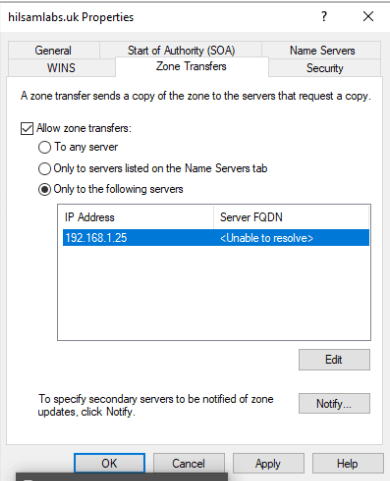
Once your service is added to the list select the OK button.
If you want to transfer the reverse lookup zone we need to repeat the same steps on the reverse zone. The zone will be located within the Reverse Lookup Zone folder, expand this and then right click on the reverse zone you want to transfer and select Properties. I would also make a note of the zone name for the BIND9 configuration later.
Navigate to the Zone Transfers tab.
Tick the option to Allow zone transfers and then select the Only to the following servers radio button.
Select the edit button and then add in the IP address and DNS name of the new Linux server that has the BIND9 service installed.

Section IV – BIND9 Configuration
Back on your Linux DNS server edit the BIND9 configuration file:
vi /etc/bind/named.conf.local
Add the following forward and reverse lookup blocks of configuration:
zone “<Domain.Name>” { type slave; file “/var/cache/bind/<Domain.Name>.db”; masters { <IP of DNS Server>; }; // IP of your AD DNS server }; zone “<Reverse Zone Name e.g. 1.168.192.in-addr.arpa>” { type slave; file “/var/cache/bind/<Reverse Zone Name e.g. 1.168.192.in-addr.arpa>.db”; masters { <IP of DNS Server>; }; };
With the configuration file updated, use the following command to restart the BIND9 service:
systemctl restart bind9
Now you should be able to use nslookup to test the Linux DNS server has the records from the DC DNS server:
nslookup hostname.domain.name <IP of new Linux DNS server>
Section V – DNS Entry Length
This is more of a final note, rather than a required configuration to make this work. In my scenario I want to run off my DC for a bit of time, but, I still want my Linux DNS server to be able to reply to the requests for my homelab domain. For this step, and I would not recommend this if you are using this guide for a production environment, I have configured the properties of my DNS zones to have a validity time of 30 days within the Start of Authority (SOA) tab. This means my Linux DNS server will continue to think the DNS entries it has received from the DC DNS server are valid and reply to the requests for those entries.
 Knowledge Addict
Leave a comment