
In this post today I am going to be going over how you can change the SSH port on Linux. More specifically I am going to be demonstrating on a Fedora Server image, but the process basically the same on all distributions.
Why Change SSH Port?
Firstly lets answer the question of why should you even bother changing your SSH port in the first place. The simple answer is that this is the most basic configuration change you can implement to protect your SSH enabled devices. A non-default SSH port is an easy way to make it just a bit harder for an attacker to traverse your SSH enabled devices if they have managed to get inside your network.
Selecting Your SSH Port
When it comes to choosing the port you will use for SSH you need to make sure that you don’t select a port that is already in use. The easiest way to do it is to check the list of well-known and registered ports list and then just pick a port that isn’t being used by another service. You can find a list of currently used ports here.
I would recommend that whatever SSH port you select to use becomes the only port used for SSH throughout your entire network, this will make it much easier to administer your network.
Configuration Steps
Okay so now we have established why you should change your port for SSH from 22 and you should have picked your port. In this example I am going to use port 5379 as my SSH port. Lets get to configuring. Firstly you will need to connect to the devices CLI so that we can configure the device.
Verify Currently Used SSH Port
To start with I am just going to confirm what port SSH is currently using and whether it is currently running. To do that I am going to use the command bellow.
systemctl status sshd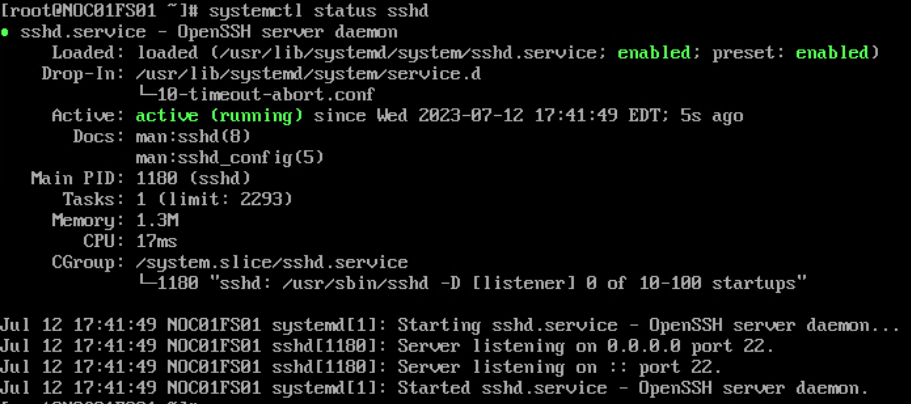
In the above image you can see the output from the command and you can see the server is listening on port 22.
Edit SSHD Configuration File
As the root user (done by either using the sudo keyword before the below command or switching user to be root) open up the sshd_config file.
vi /etc/ssh/sshd_config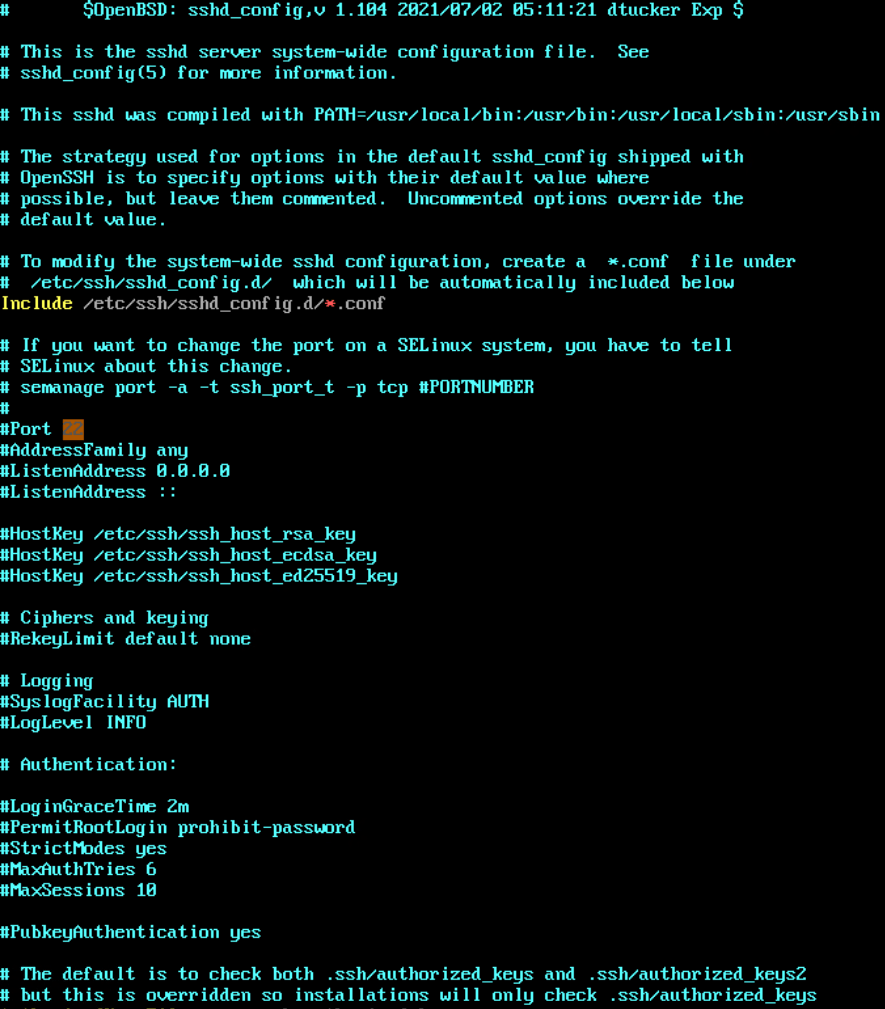
Once in the config file navigate to where it says ‘#Port 22’.
Remove the # from the line and then change the port number to the one you have selected for SSH.

Your sshd_config file should now look something like the one above. Then save and exit the text file.
Edit SSHD Socket File
Now we have change the actual SSH daemon we now need to change the configuration of the SSH socket that is listening open to receive SSH connections.
Enter the following command to edit the socket:
systemctl edit sshd.socket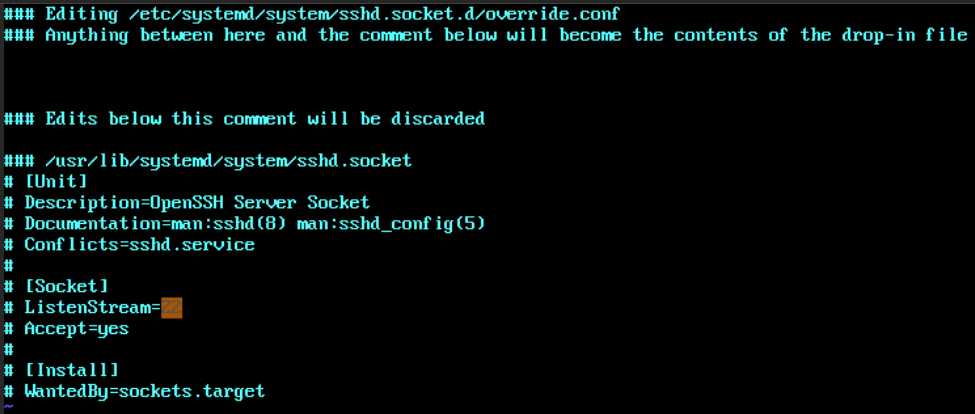
Once you are in the file you need to change the config file so it ends up looking like this:
ListenStream=
ListenStream=(your chosen SSH port)
The reason you need to have a blank Listen Stream entry is because this will remove the old SSH port from the configuration.

You sshd.socket file should now look like the above example.
Add Port to Firewall
If you have a host firewall on the device you will need to remove the old SSH port and allow through the new SSH port. In my example I have firewalld running on my device.
Enter the following commands to change the firewall config:
firewall-cmd --permanent --service="ssh" --add-port "(your chosen SSH port)/tcp"
firewall-cmd --permanent --service="ssh" --remove-port "22/tcp"
firewall-cmd --reload
After you enter each command you should see an output that says success.
Add Port to SELinux Port Configuration
If you have SELinux running on your device then you will need to adjust the configuration of your ssh service policy so that SELinux allows through your new SSH port.
You can use the following command to see what port SELinux is expecting for SSH:
semanage port -l | grep ssh_port_tTo change the SELinux expected SSH port:
semanage port -a -t ssh_port_t -p tcp (your chosen SSH port)
If you use the same command as earlier to view the SELinux SSH port you will notice that now it is allowing the default SSH port 22 and your new SSH port through. If you want to remove the original SSH port from this configuration you will need to make your own custom SSH policy and apply that instead of using the default SSH policy. In its current configuration this is not a big security threat because the SSH daemon isn’t listening for the default port and the firewall isn’t allowing the default port through.
Restart SSH Service
The final step for the configuration is to restart the SSH daemon. Use the following command to do that:
systemctl restart sshdThis will allow the SSH daemon to pull the latest configuration. Then if you do the following command you should be able to see the new port that SSH is listening for.
systemctl status sshdFinal Verification
Now that the Linux box is configured to use the non-default SSH port we can test to see if it works as expected.
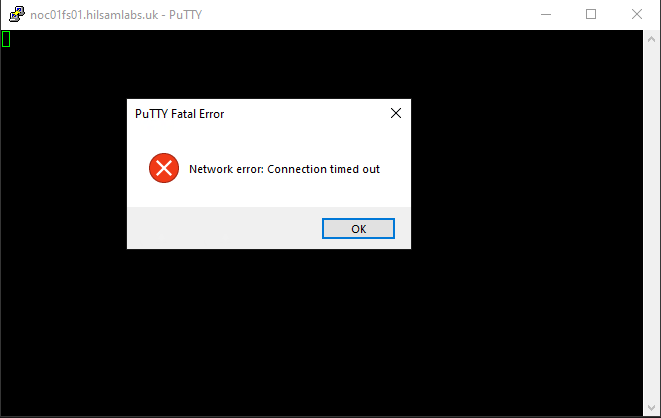
If I try to connect to the device using the default SSH port 22 I get a connection timed out because I am unable to connect to the device using that port.
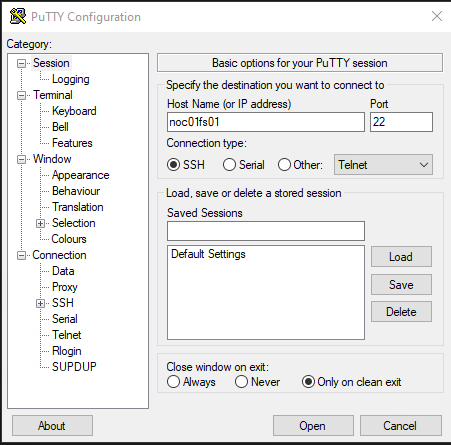
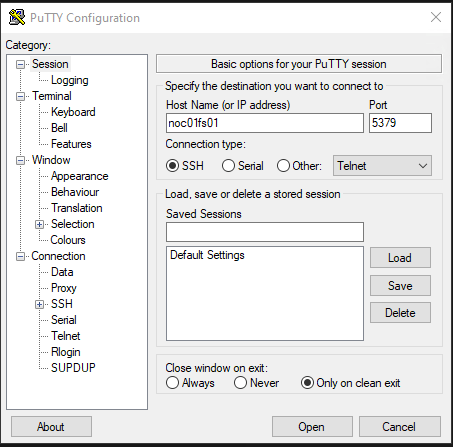
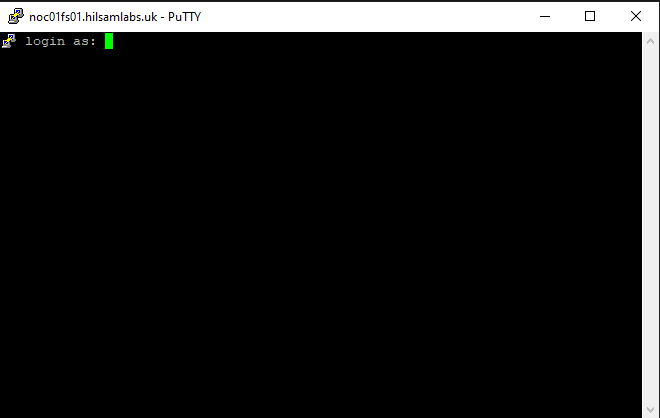
If I try to connect to the device using the newly configured port I can see it connects and allows me to log in.

 Knowledge Addict
Leave a reply to Linux – Changing SSH Port Failed – Error: Bind to port on 0.0.0.0 failed: Permission denied – Knowledge Addict Cancel reply